







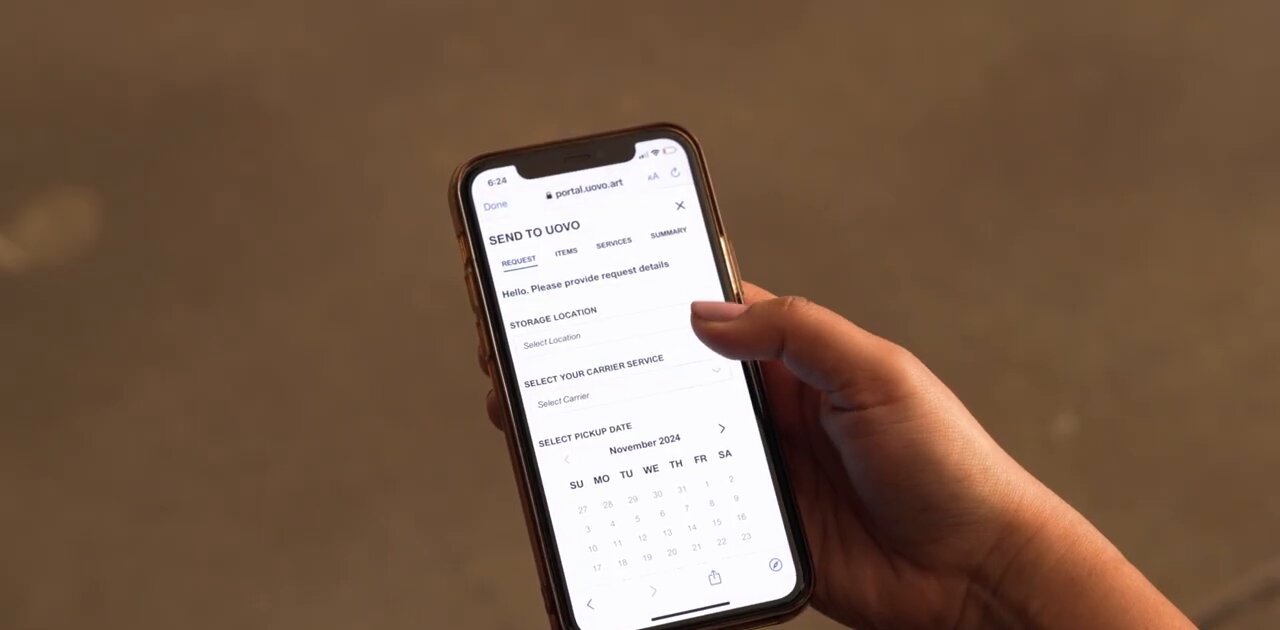
Managing a collection involves a lot of moving parts: knowing where every work is, scheduling pickups and deliveries, keeping condition reports on file, and staying current on billing. UOVO’s Client Portal brings all of it into one secure place. From any computer or phone, you can view your inventory, pay invoices, make service requests, get in touch with your dedicated team, and more.
This guide walks through each part of the portal so you know exactly where to find what you need.
How to Access the UOVO Client Portal
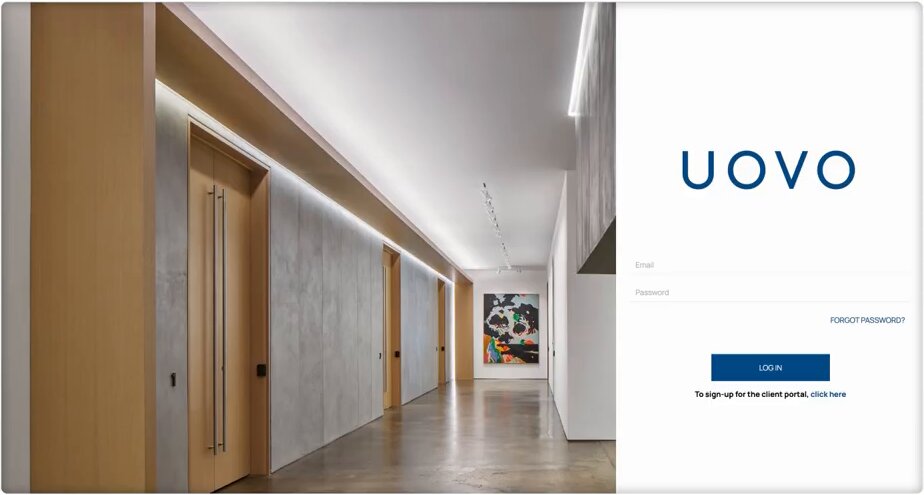
To sign up for the Client Portal, click the link below the login button. If you’d like to be added as a user of an existing account, our team will confirm that your name is on the account’s authorized access list and approve your access within 24 hours.
If you already have a Client Portal account, enter your email address and password and click Log In. For your security, you’ll then be asked to confirm your identity with a code sent to your email address or cell phone.
Want to see it in action? Watch the video: Accessing the Client Portal
Your Client Portal Dashboard
Once you’re logged in, the dashboard shows your recent requests, contact information for your Account Manager, and any open invoices. You can also explore UOVO’s full suite of services and keep up with the latest UOVO news.
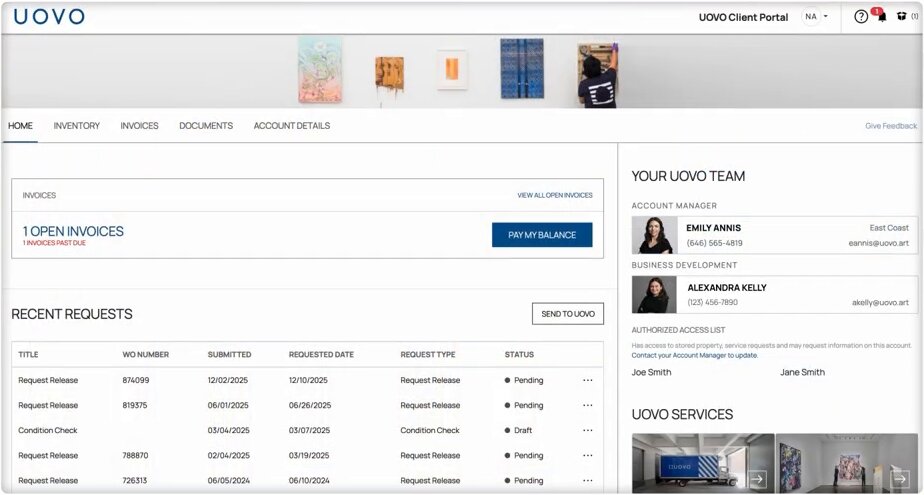
The icons in the top right corner of the screen let you open the FAQ page, view notifications, edit any in-progress requests, and go to your Account Details page.
Want to see it in action? Watch the video: Client Portal Homepage Overview
Stay Informed With Notifications
We’ll still email you about important announcements, and our team also uses the portal’s Notifications feature to let you know when new bills of lading, condition reports, or receipts are available. You’ll also find company announcements, facility updates, portal improvements, and more.
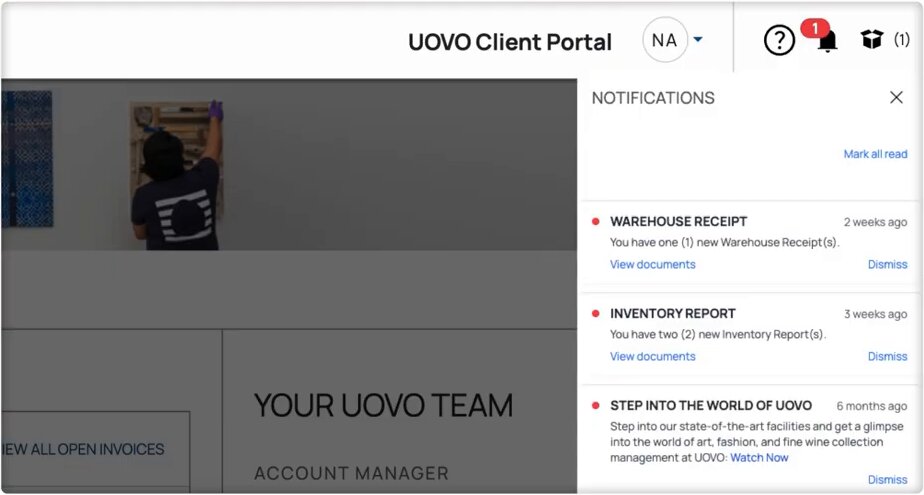
Notifications are also covered in the video: Client Portal Homepage Overview
Manage Your Account Details
The Account Details section shows the contact details associated with your account. From here you can change your password, update your billing information, and request access to an additional account.
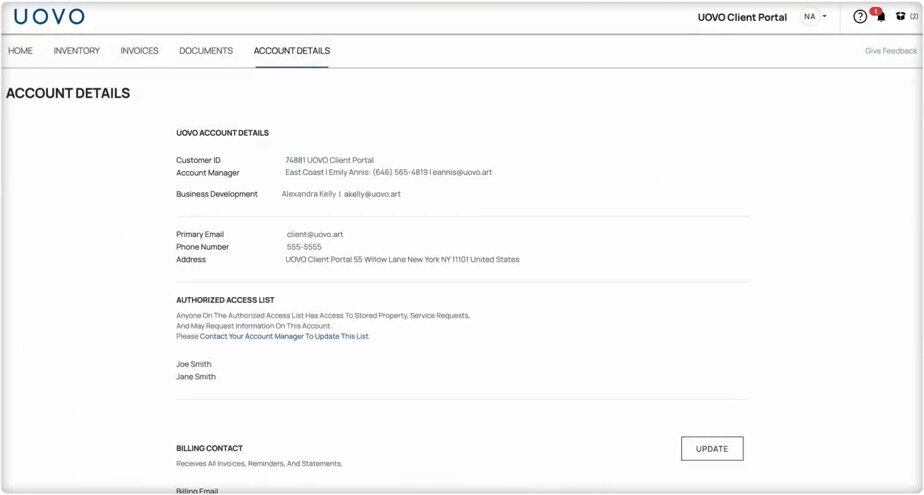
Want to see it in action? Watch the video: Accessing Your Client Portal Account Details
Browse Your Digital Inventory
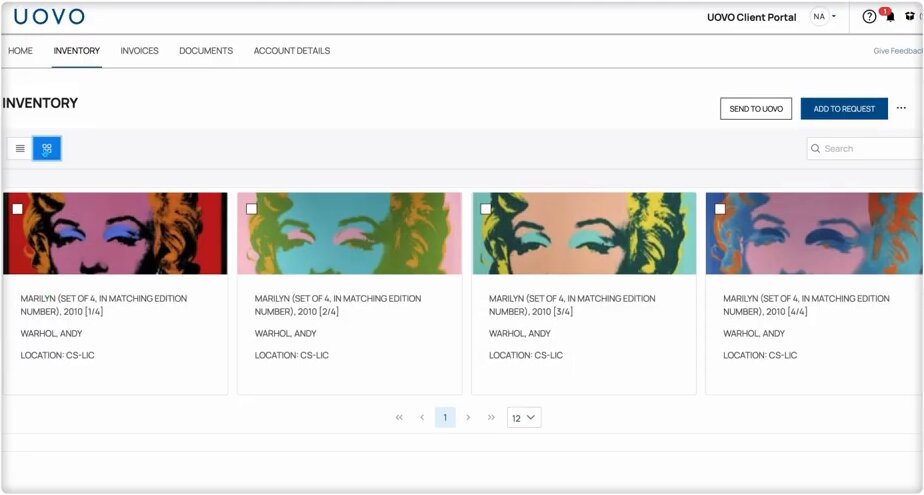
The Client Portal gives you a digital inventory of every artwork you’ve stored or shipped with UOVO. For each item, you can see its barcode number, location, and dimensions, and you can filter your inventory by artist and other artwork details. Switch between list and grid views to browse the way you prefer.
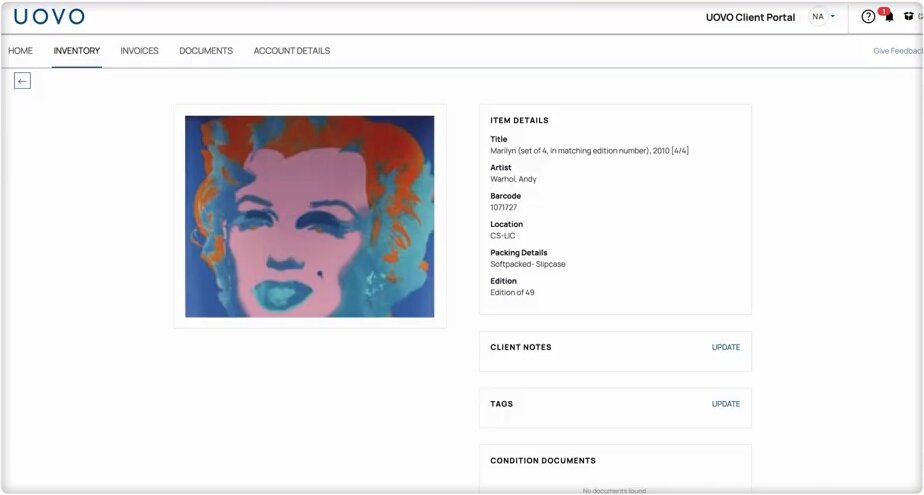
Every item in your inventory has its own page where you can review past condition reports. To organize your collection further, you can add custom tags or personal notes. These are private and won’t be visible to your UOVO representatives.
Download an Inventory Report
Need a full record of your collection? To get a comprehensive Inventory Report, click the ellipses (…) next to the “Add to Request” button and choose CSV or PDF. We’ll email you a link to download the report once it’s ready, so there’s no need to wait on the screen.
Want to see it in action? Watch the video: Access Your Digital Inventory with the Client Portal
Create a Service Request
On the Inventory page, you can select artworks to add to a pickup, delivery, or condition report request. Here’s how a request works:
- Choose a request type: Select a Release (for third party shippers), a Condition Check, or a Condition Report.
- Pick a date and time: Choose your preferred date and time, and add any notes that might help our team.
- Add services: If you need additional services such as installation, packing, or viewing room access, request them here. Your Account Manager will reach out directly to coordinate.
- Review and submit: Check your request summary and confirm that all details are correct.
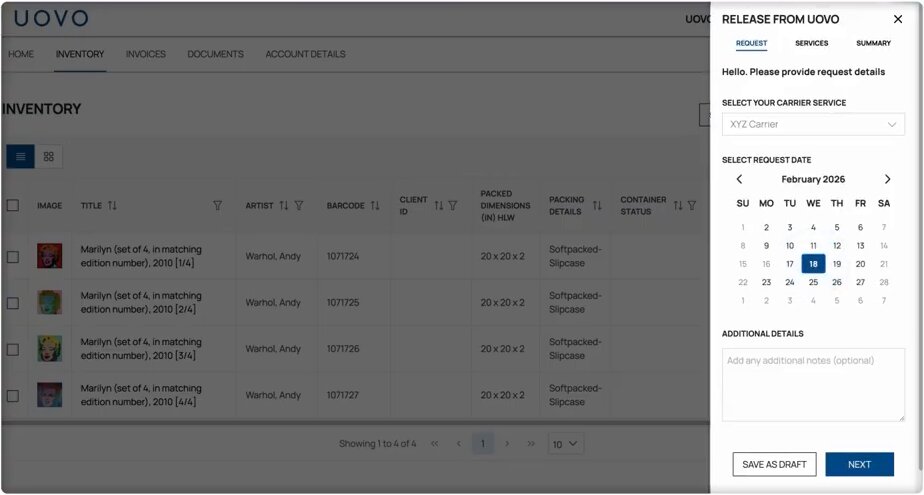
If you need more time, you can save a request as a draft and come back to it later. To change a request after you’ve submitted it, contact your Account Manager directly.
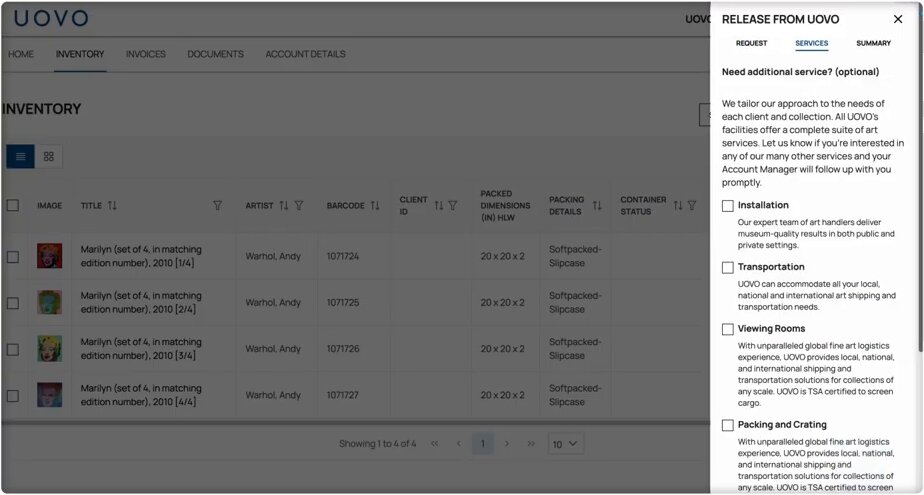
Want to see it in action? Watch the video: Create a Service Request with the Client Portal
View and Pay Invoices
The Invoices page shows all past and present invoices, including any outstanding balances. You can sort and filter invoices, including alternate billing party invoices, by invoice number, date, and amount due. You can also pay your outstanding balance, update your billing information, or download your current statement.
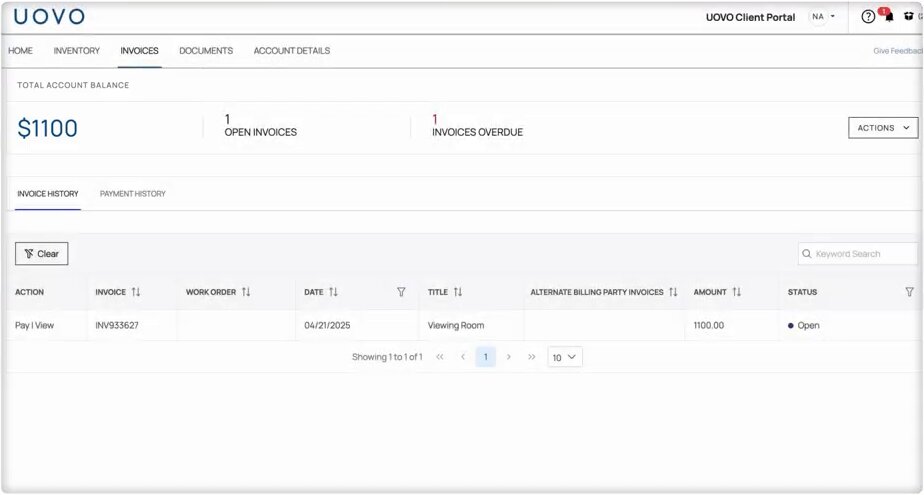
Want to see it in action? Watch the video: Access & Pay Invoices with the Client Portal
Find Your Documents
On the Documents page, you can view and download all of your warehouse receipts, condition checks, and bills of lading, and filter them by date or document title.
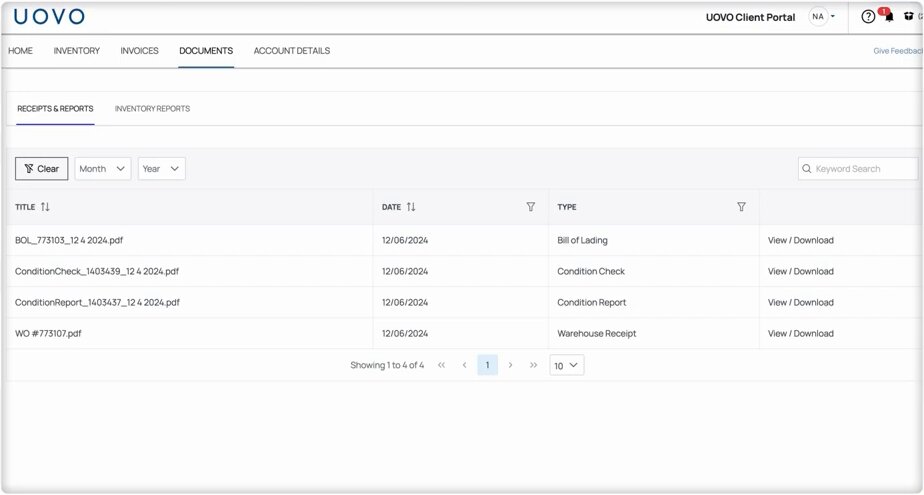
Want to see it in action? Watch the video: Access Documents with the Client Portal
Share Your Feedback
We’re always looking for ways to improve our services and technology. Click Give Feedback at the top of the portal to rate your experience and tell us what’s working and what could be better. Your feedback helps us keep delivering the best possible experience.
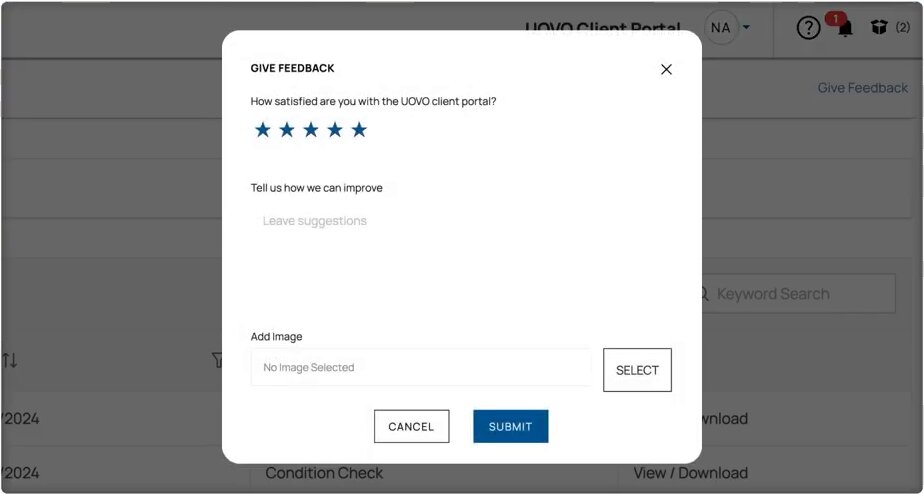
Want to see it in action? Watch the video: Share Your Feedback
Frequently Asked Questions
What can I do in the UOVO Client Portal?
You can view your digital art inventory, create release and condition report requests, pay invoices, download warehouse receipts and bills of lading, update your account details, and contact your dedicated UOVO team.
How do I get access to the Client Portal?
Click the sign-up link below the login button. If you’re joining an existing account, our team will confirm that you’re on the account’s authorized access list and approve your access within 24 hours.
Can I download a list of everything I have stored with UOVO?
Yes. On the Inventory page, click the ellipses next to “Add to Request” and choose CSV or PDF. We’ll email you a download link for your Inventory Report.
Can my UOVO team see my notes and tags?
No. Custom tags and personal notes you add to inventory items are visible only to you.
How do I change a request I’ve already submitted?
Contact your Account Manager directly. Requests you haven’t submitted yet can be saved as drafts and edited anytime.
Have questions about the Client Portal? Reach out to your Account Manager, or visit the FAQ page from the top right corner of the portal. of the portal.